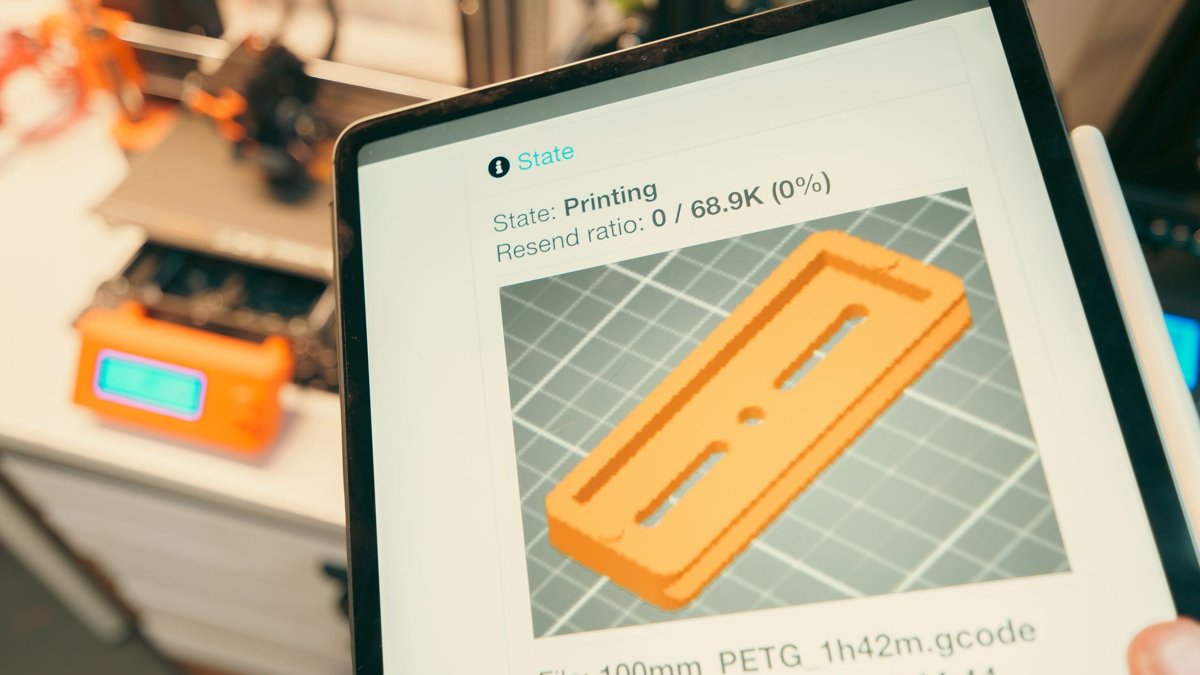
The single most useful fact about first layer settings in PrusaSlicer is that the slicer does exactly what you tell it. If you set a 0.20 mm first layer height, it calculates flow and movement at 0.20 mm — no hidden “help”, no behind-the-scenes flow tweaks. That means every number you enter has a direct, predictable effect on how well that first layer grips the sheet. Get four of them right — height, extrusion width, speed and fan — and a print either sticks or it doesn’t, before you’ve wasted a spool on a part that lifts at hour three.
Here are the exact values, where they live, and the mechanism behind each one — including the two percentage traps that silently under-size your first layer.
First layer height: 0.20 mm is the default for a reason
Original Prusa print profiles always use 0.20 mm as the first layer height, regardless of the layer height for the rest of the print. You set it in Print Settings → Layers and perimeters, either as an absolute value (0.20 mm) or as a percentage of the default layer height (e.g. 150%).
The point of a dedicated first layer height is twofold. First, when you’re printing fine detail at 0.10 mm you still want a thicker, more forgiving first layer for adhesion. Second, a thicker first layer absorbs bed unevenness — the less flat your surface, the more a slightly fatter first layer helps the nozzle lay a continuous trace instead of scraping high spots and skipping low ones. Prusa’s own sheets are flat enough that 0.20 mm works consistently; on a less even bed you have more reason to go thicker.
Know the limits:
- Firmware floor (MK3-class): 0.15 mm is hard-coded as the minimum layer height, due to the software endstops used on the printer. Don’t try to go below it.
- Hard ceiling: layer height cannot exceed the nozzle diameter — PrusaSlicer throws an error if you try.
- Practical ceiling: up to about 80% of nozzle size is sensible, so roughly 0.32 mm on a 0.4 mm nozzle.
As general guidance, 0.20 mm is the sweet spot; 0.20–0.25 mm is more forgiving if you’re fighting adhesion, and going below 0.15 mm only pays off on a well-levelled bed. Whenever you change first layer height, re-check your live Z / first-layer calibration — the two are linked, and a change here usually needs a nudge there.
First layer extrusion width: the two percentage traps
This is where most first-layer failures are quietly engineered. In Print Settings → Advanced, PrusaSlicer defaults to a 0.42 mm first layer extrusion width (the 0.15 mm Quality profile uses 0.42 mm on the first layer and 0.45 mm elsewhere). The mechanism for improving adhesion is simple: more plastic in contact with the bed grips better. Widen the first-layer traces and more surface area bonds to the sheet; the slicer spaces the lines farther apart so you never over-extrude. If a layer is 30 lines wide at 0.42 mm, it’ll be about 25 lines wide at 0.50 mm — wider beads, correctly spaced, no blobbing.
The traps are in how you enter the value:
- Enter 0 and PrusaSlicer derives the width from the nozzle: 1.125 × nozzle diameter (0.45 mm on a 0.4 mm nozzle).
- Enter a percentage and — critically — it is calculated from the layer height, not the nozzle diameter. This is the single most common point of confusion in the whole dialog.
Here’s the failure case. The old “fat first layer” advice is to set width to around 200%. That only works if your layer height is already near maximum. If your first layer height is 0.10 mm and you set width to 200%, the actual extruded width is just 0.20 mm — narrower than your nozzle. The result is poor flow, gaps and a failed first layer. The percentage did exactly what it promised; it just promised something against the wrong reference.
Do the maths deliberately. A first layer height of 0.35 mm with 200% width gives a genuinely fat 0.65 mm bead. If you want the benefit without the arithmetic landmine, enter a fixed mm value instead — about 0.50 mm on a 0.4 mm nozzle — unless your first layer height is already at its maximum. As a rule of thumb, extrusion width around 110–120% of nozzle diameter is a safe default; push to 120–140% (or a fixed ~0.50 mm) to chase adhesion, at the cost of some XY resolution. On quality nozzles you can go up to 200% of nozzle size, but you rarely need to.
| First layer width input | What PrusaSlicer actually produces (0.4 mm nozzle) |
|---|---|
| Default | 0.42 mm |
| 0 (auto) | 1.125 × nozzle = 0.45 mm |
| 200% at 0.10 mm first layer | 0.20 mm — too narrow, poor flow ⚠️ |
| 200% at 0.35 mm first layer | 0.65 mm — proper fat bead ✓ |
| 0.50 mm fixed | 0.50 mm regardless of layer height ✓ (safest) |
First layer speed: slow it down, and mind absolute vs percentage
You’ll find this under Print Settings → Speed → Modifiers → First layer speed in Advanced or Expert mode. First layer speed overrides every other speed category for that layer — one value governs the whole thing.
Watch the units, because they behave differently:
- 75 means 75 mm/s — far too fast for a first layer.
- 75% means 75% of whatever speed the feature being printed would otherwise use.
Experienced users typically run 18–25 mm/s for the first layer; 20 mm/s is a solid starting point for good bed adhesion. Slower gives the molten bead more time to wet onto the surface and more time for the first layer to lie flat before the next trace lands beside it.
One native limitation worth knowing: there’s no built-in way to set different first-layer speeds for perimeters versus infill — it’s a single value. If you genuinely need separate control (say, slow external perimeters but faster first-layer infill on a big plate), use a height-range modifier covering just the first layer, add the features you want to govern (external perimeters, perimeters, small perimeters, solid infill) and set their speeds there. And remember the maximum volumetric speed cap still applies — the hotend can only melt so much plastic per second regardless of what you ask for.
First layer temperature: run it slightly hotter
Every system filament profile already sets a separate first-layer nozzle and bed temperature in Filament Settings → Temperature. The common, sensible practice is to run the first layer a touch hotter than subsequent layers — typically +5–10 °C — so the first beads wet onto the sheet more readily.
Representative values:
| Material | First-layer nozzle (guidance) | Bed |
|---|---|---|
| PLA | ~215 °C (vs 205–210 °C) | ~60 °C |
| PETG | ~240 °C | ~70–85 °C |
| ABS / ASA | ~250 °C (vs 245 °C) | ~95–110 °C |
For warping on PETG, ABS and ASA, bed temperature is the more effective lever than nozzle temperature — a hotter bed keeps the lower layers above their glass transition long enough to relieve stress instead of curling. If you’re fighting PETG specifically, our PETG first layer settings guide has the full temperature-and-squish picture, including how to avoid welding the part to the sheet.
Cooling: disable the fan for the first layer(s)
In Filament Settings → Cooling, the setting is “Disable fan for the first [N] layers“. Too much cooling makes it extremely difficult for the first layer to adhere, so you hold the part fan off until the print is securely attached to the bed. Prusa’s base profiles set this per material:
| Material | Fan disabled for first N layers |
|---|---|
| PLA | 1 |
| PETG | 3 |
| ABS | 3 |
| TPU | 3 |
If you ever need the fan on for the first layer (unusual, but occasionally wanted for fine PLA bridging detail), set “Disable fan for the first” to 0, disable “Enable auto cooling”, and set “Full fan speed at layer” to 1. Conversely, “keep fan always on” forces the fan to run at least at its minimum speed and never fully disable — handy for PLA, but harmful for ABS, where any first-layer airflow invites lifting.
Elephant foot compensation: the setting that fights your brim
Elephant foot compensation (Print Settings → Advanced) is a geometric offset applied only to the bottom-most layers. Rather than shrinking the whole part, the slicer pulls the outer perimeter inward by a value in mm — typically ~0.1–0.2 mm to start — to counter the bulge a squished, warm first layer produces.
There’s a trap when you combine it with a brim. By design, elephant foot compensation shrinks the part’s first layer but not the brim. That leaves a gap between the brim and the part’s outer perimeter — so the brim you added for adhesion isn’t actually touching the part it’s meant to anchor. Set elephant foot compensation to 0 when you’re using a brim (and, in newer builds, set any brim separation gap to 0 too). If you need both, dial in your first-layer squish so you don’t need elephant foot compensation at all, then add the brim.
Use the skirt as a free first-layer check
The skirt is an outline printed around the models before any part, and its main job is to stabilise flow through the nozzle. It’s also a free first-layer level check: it prints first, so you can watch the trace and nudge your live Z before the part starts. If the skirt looks thin and shiny you’re too high; if it’s rough and dragging you’re too low. A good skirt is a flat, matte, consistent bead.
If adhesion is still fighting you after the settings above, work the problem in order rather than randomly changing values — our walkthrough on how to fix a first layer not sticking in PrusaSlicer sequences the fixes so you don’t chase your tail. Prefer OrcaSlicer? The equivalent values live in our OrcaSlicer first layer settings guide.
Catch the mistakes before the print starts
Most of the traps above — a 200% width that under-sizes the trace, a brim orphaned by elephant foot compensation, the fan left on for ABS — are invisible until the part lifts. Our G-code pre-flight checker reads your sliced file and flags these first-layer conflicts before you commit the plate, and if a print does fail you can upload a photo to Diagnose for a concrete list of slicer changes. If you’re running several printers and selling what you make, Printer Farm carries the same checks into a full order-to-despatch pipeline — web order in, stock used first, a works order for the shortfall, cloud slicing on the real OrcaSlicer engine, the queue sending each job to the first free printer with the right filament loaded, cameras with AI failure alerts, and a true cost per part banked at the end. It’s in open beta with a free 14-day trial.
FAQ
What is the best first layer height in PrusaSlicer?
0.20 mm is the default across Original Prusa profiles and the sweet spot for most prints. Go to 0.20–0.25 mm if you’re fighting adhesion or have a slightly uneven bed; don’t drop below the firmware minimum of 0.15 mm, and never below that without a well-levelled bed.
Why is my first layer extrusion width wrong when I enter a percentage?
Because the percentage is calculated from the layer height, not the nozzle diameter. At a 0.10 mm first layer, 200% gives only a 0.20 mm trace — narrower than a 0.4 mm nozzle. Enter a fixed mm value (around 0.50 mm) instead, unless your first layer height is already at maximum.
What first layer speed should I use in PrusaSlicer?
18–25 mm/s, with 20 mm/s a reliable starting point. Remember that a bare number like 75 means 75 mm/s, while 75% means 75% of the feature’s normal speed — and first layer speed overrides all other speed categories for that layer.
Should the cooling fan run on the first layer?
No for most materials. Prusa’s profiles disable the fan for the first 1 layer on PLA and the first 3 on PETG, ABS and TPU, so the part bonds before any airflow hits it. Only force it on (set the value to 0) for specific detail cases.