A 3D print queue is a single backlog of everything you need to print, shared by your whole fleet, so nobody walks the floor starting printers by hand. 3D print queue management software is what turns that backlog into shipped parts: it organises jobs, decides which printer runs each one, and executes them in sequence — ideally only matching a job to a printer that can actually run it, by build size, temperature, nozzle and material. Get it right and your printers stay busy overnight without supervision. Get it wrong and you spend your mornings untangling clashes and clearing failed plates.
This guide covers the two queue models you have to choose between, the features that separate a toy queue from a production one, the real tools (open-source and commercial), and the technical traps — power draw and bed clearing chief among them — that catch people as they scale from one printer to several.
Two queue models: per-printer vs shared central
Every tool sits somewhere on this axis, and the distinction matters more than the brand name:
- Per-printer queues. Each printer has its own ordered list of jobs. Simple, predictable, and fine for a handful of machines you load by hand. The downside: you’re the load balancer. If printer 3 finishes early and printer 5 is backed up, nothing moves between them unless you move it.
- Shared / central queues. One backlog, many printers pulling from it. The software — not you — decides which free machine takes the next compatible job. This is what lets a fleet self-level. The catch is that “compatible” has to be defined properly, or you’ll send a PETG job to a printer loaded with PLA.
Several tools now offer both. 3DQue’s AutoFarm3D, for example, ships a simple queue in its Lite tier (you assign jobs to specific printers from a central list) and a smart queue in the full product that routes jobs algorithmically. Bambuddy, a third-party tool for Bambu fleets, supports per-printer queues plus a “queue to any printer of matching model” option that load-balances automatically across identical machines. If you run more than four or five printers, a true shared queue stops being a luxury.
The features that actually matter
Marketing pages list dozens of features. In practice a queue earns its keep on these:
Smart routing and job matching
The queue should analyse each item — maximum print size, bed and nozzle temperatures, and any tags you set (nozzle diameter, material such as PLA or PETG, colour, custom tags) — and only match it to a printer that can run it. The best implementations re-route: if a more efficient machine frees up before the job starts, the job moves. Without matching, a “smart” queue is just a list that happens to hit start on the wrong printer.
Bulk and multiply
Queuing 270 copies of the same part should be one entry, not 270. SimplyPrint, Fluidd and OctoPrint’s Continuous Print plugin all let you add one file and set a repeat count. For anyone fulfilling orders, this is the difference between a two-minute setup and an afternoon.
Continuous printing with bed clearing
Sequential printing — one job finishes, the next starts automatically — only works safely if the bed clears between jobs. This is the single most common way people damage hardware, so treat it as a hard requirement, not a nice-to-have (more below).
ETA and reordering
You want to see when the whole queue finishes, not just the current job. Fluidd’s queue footer shows combined estimated print time and an ETA for the entire backlog, accounting for whatever is printing now. Drag-to-reorder and “print later” are table stakes.
Order integration
If you sell parts, the queue should be fed by your shop, not copy-paste. SimplyPrint’s API can add queue items with tags and a queue group, which is how farms wire Etsy, Shopify or ShipStation orders straight into the backlog so a paid order becomes a queued job. This is where a pure queue starts bumping into the limits of what a queue alone can do — order matching, stock, costing and despatch sit just beyond it.
The real tools, honestly compared
Here’s how the common options stack up. “Mixed fleet” means it handles more than one printer brand/firmware.
| Tool | Type | Mixed fleet? | Shared queue | Continuous print | Notes |
|---|---|---|---|---|---|
| SimplyPrint | Cloud | Yes (Bambu, Klipper/Moonraker, Marlin, Prusa) | Yes | Yes | Local client can run on a Raspberry Pi; API for order bridges |
| 3DPrinterOS | Cloud | Yes | Yes | Yes | One-click start on all available printers; aimed at business/education |
| AstroPrint | Cloud | Yes | Yes (Group Queues) | Partial | Admins manage; users send to a shared queue |
| Prusa Connect | Cloud | No — Prusa only | Per-printer | Manual harvest | Timeline view of all printers; MK3S+ needs a Pi running PrusaLink |
| Bambu Farm Manager | Cloud/local | No — Bambu only | Yes | Manual start | Free; slicing still in Bambu Studio |
| OctoFarm | Self-hosted | Via OctoPrint | No | No | Monitoring only; effectively unmaintained |
| OctoPrint Continuous Print | Plugin | Via OctoPrint | LAN queues | Yes | Requires auto bed-clearing GCODE; failure retries via Spaghetti Detective |
| Fluidd / Mainsail | Klipper UI | No — Klipper only | Per-printer | Yes (Fluidd) | Multi-printer = switch between instances, no unified view |
Open-source and self-hosted: know what you’re signing up for
Free software isn’t free of cost — you pay in hosting and maintenance. OctoFarm combines multiple OctoPrint instances into a single pane of glass using the OctoPrint API and websockets, but it’s monitoring and management only: no print queue, no staggered start, no continuous-print automation. It’s also now effectively unmaintained, and it needs a server running Node.js and MongoDB plus an OctoPrint instance per printer, all patched by you.
The OctoPrint Continuous Print plugin (by smartin015, latest release 2.4.1 on 2024-04-27) is the better bet for automation on an OctoPrint fleet. You add G-code files, set repeat counts, group files into jobs, run a bed-clearing script after each, and optionally retry adhesion failures via Spaghetti Detective with configurable limits. It also supports LAN queues across networked printers. The critical caveat is in its own docs: your printer must clear the bed automatically with the correct GCODE in the plugin settings, or damage may occur.
On Klipper, Fluidd has the most usable job queue — sequential printing, bulk add, drag-to-reorder, whole-queue ETA. But it’s Klipper only (Klipper firmware plus Moonraker), it won’t drive generic Marlin-over-serial or Bambu machines, and for multiple printers it’s a switcher: you add each printer’s Moonraker address and view them one at a time. There’s no unified dashboard or cross-printer queue. Mainsail has a job queue too; full batch continuous printing has been a long-standing feature request (GitHub issue #920) — check the current state before you rely on it. Klipper natively can loop a single file via sdcard_loop and accept a continuous stream from the slicer if you wire up bed clearing.
Bambu and Prusa ecosystems
Bambu Farm Manager is free and centrally manages multiple Bambu printers: create jobs, queue them, start them when it suits, with one overview of which printers are busy and who started what. Slicing stays in Bambu Studio. Bambu Handy also appears to have gained a Queue feature during 2026 — still rolling out and reportedly limited rather than a full production queue, so verify against your current app version. The long-standing manual workaround still works: put several plates in one Bambu Studio project and pick the next plate once the current one finishes.
Prusa Connect scales from one machine to a whole farm and gives each registered printer its own queue plus a timeline showing when every job finishes. It’s Prusa hardware only, though — no Bambu, Klipper/Moonraker, Creality, Anycubic, Duet or generic Marlin — and the older MK3S+ needs a Raspberry Pi running PrusaLink to connect.
Pricing, roughly
Prices change and several vendors are opaque, so treat these as indicative and check before you commit:
- SimplyPrint: free for 2 printers; third-party comparisons list paid tiers around $5.99–$9.99/mo, with education plans and extra-printer add-ons (figures largely vendor-stated).
- 3DPrinterOS: not publicly listed; quoted around $200–250 per printer per year elsewhere, with a free 14-day trial and a listed “Premium” start around $19.
- Printago: $4 per production slot per month (per simultaneous print, not per connected printer).
- Print&Go: flat tiers capped at 4, 10 or 50 printers.
- AstroPrint: free tier, Premium around $9.90/mo, $5 per extra printer.
- Bambu Farm Manager: free.
The traps that bite as you scale
Power: the preheat spike, not steady running
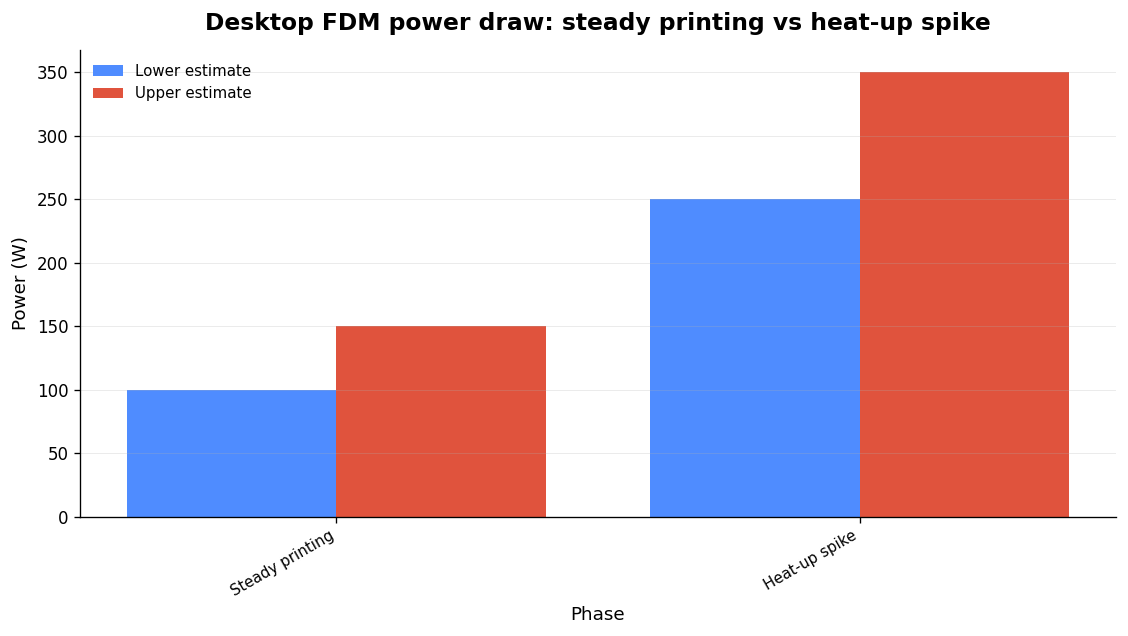
The danger isn’t a fleet humming along mid-print — it’s the moment many printers heat beds and nozzles at once. A typical desktop FDM printer draws about 100–150 W while printing but spikes to 250–350 W during heat-up. A standard 15 A / 120 V circuit gives you roughly 1440 W of usable continuous load, which caps a single circuit at about four to six printers before simultaneous heat-up risks tripping the breaker. Twenty printers heating together can briefly demand over 2000 W and trip the breaker mid-print, scrapping every job on that strip.
This is why staggered start is a scheduling feature, not a cosmetic one. Best 3D Print Farm, for example, offers start staggering and bed-clear control precisely to flatten that spike. If your queue tool can’t stagger, stagger it yourself: split printers across circuits and don’t let the queue fire everything simultaneously.
Bed clearing: the one that breaks hardware
Continuous printing without reliable bed clearing is how you crash a nozzle into a finished part. Every automated queue that starts the next job unattended needs either a verified automatic ejection method with correct clearing GCODE, or a human confirming the bed is clear. Don’t let a free weekend of unattended printing tempt you past this.
When a queue isn’t enough
A queue dispatches jobs. It doesn’t know your stock, your orders, your spool weights or your cost per part. The moment you’re selling parts, those gaps turn into manual admin — and that’s the problem Printer Farm is built to close. It runs the whole job end to end: a web order from WooCommerce, Shopify or your own custom website (connected through the farm’s shop API with a token, no plugin) comes in; stock is used first; one click raises a works order for exactly the shortfall, carrying the due date and customer reference; cloud slicing in the browser uses the real OrcaSlicer engine; the queue dispatches each job to the first free compatible printer with the right filament loaded; cameras with AI failure alerts watch it; good prints bank into stock with a true cost per part (mixed plates split by weight); and despatch raises a numbered delivery note.
It works with Creality and any Klipper/Moonraker printer, Bambu Lab in LAN mode, FlashForge, OctoPrint, PrusaLink and Duet. A small agent on a Windows or Linux computer that stays on bridges the printers; your files stay on your own machine, and slicing runs on your PC through ATN Slicer (or on our servers on Workshop and above). It’s in open beta with a free 14-day Workshop trial, no card — start a trial here. If you want to think through the wider decision first, our guides on cloud 3D printer management software and fleet management software cover what to look for.
FAQ
What’s the difference between a per-printer queue and a shared queue?
A per-printer queue is one list per machine — you decide what each printer prints. A shared (central) queue is one backlog that any compatible, free printer pulls from, so the software balances the load. Shared queues are far more valuable once you’re past about five printers; below that, per-printer queues are simpler and perfectly workable.
Is there free 3D print queue management software?
Yes. Bambu Farm Manager is free for Bambu fleets, the OctoPrint Continuous Print plugin and Fluidd (Klipper) are free and open-source, and Best 3D Print Farm is free for up to 3 printers. SimplyPrint and AstroPrint have free tiers for 2 printers. The trade-off with self-hosted options is maintenance: OctoFarm, for instance, needs a Node.js/MongoDB server and an OctoPrint instance per printer, and is now effectively unmaintained.
Can one queue manage printers from different brands?
Cloud tools like SimplyPrint and 3DPrinterOS handle mixed fleets, as does Printer Farm (Creality/Klipper, Bambu in LAN mode, FlashForge, OctoPrint, PrusaLink, Duet). Brand-locked tools can’t: Prusa Connect manages only Prusa hardware, Bambu Farm Manager only Bambu, and Fluidd/Mainsail only Klipper printers.
How many printers can I run on one electrical circuit?
Roughly four to six desktop FDM printers on a standard 15 A / 120 V circuit, limited by the heat-up spike (250–350 W per printer) rather than steady-state draw (100–150 W). Use staggered start and split machines across circuits so they don’t all preheat at once, or a simultaneous spike over 2000 W can trip the breaker and ruin every in-progress print on that strip.
Related: Bambu Lab Print Farm Without Cloud: The Real Setup, Limits and Fixes
Related: 3D Print Failure Diagnosis: Read the Symptom, Find the Real Cause